Solution on Conditionally Hide a Specific Values Within a Column using Conditional Region
A Friendly Guide to Streamlining Your Invoice Reports with BI Publisher
Imagine opening an invoice report and seeing a clutter of irrelevant details—like a “Balance to be Paid” column still showing up for fully paid invoices. Confusing, right? Don’t worry! With BI Publisher, you can transform your reports into clear, professional documents that only show what matters. Let’s walk through an exciting solution to hide the “Balance to be Paid” column when an invoice is marked as “Paid” (Payment Status = ‘Y’). Ready to make your reports smarter and sleeker? Let’s dive in!
Why This Matters
Picture this: Your customer has settled their invoice in full, but your report still shows a “Balance to be Paid” of zero. It’s not just unnecessary—it can confuse your team and clients, clutter your layout, and even waste time explaining why the data appears. By hiding this field when it’s irrelevant, you’ll deliver cleaner, more accurate reports that everyone will appreciate.
The Challenge: Cluttered Reports Without Logic
Without a smart solution, the “Balance to be Paid” column shows up no matter what, leading to:
- Misunderstandings: Business users might misread the data.
- Messy Layouts: Unneeded information makes reports look busy and unprofessional.
- Extra Work: More time spent clarifying reports instead of focusing on what’s important.
But here’s the good news: With a few simple steps, you can fix this and make your reports shine!
Your Step-by-Step Solution: Hiding Irrelevant Data Like a Pro
Follow this guide to ensure your invoice reports are as clear and relevant as possible. No technical jargon, just practical steps to get you started!
Step 1: Get Your Data Read
- Open Microsoft Word and make sure the BI Publisher Add-In is active.
- Go to BI Publisher > Sample XML > Load XML Data and upload the XML file with your invoice details.
- Check your data by clicking Data > Field Browser. This shows you all the elements (like Invoice Number, Payment Status, and Balance to be Paid) you’ll work with. It’s like peeking behind the curtain!
Step 2: Build Your Report Layout
- Place your cursor where you want your table in the Word document.
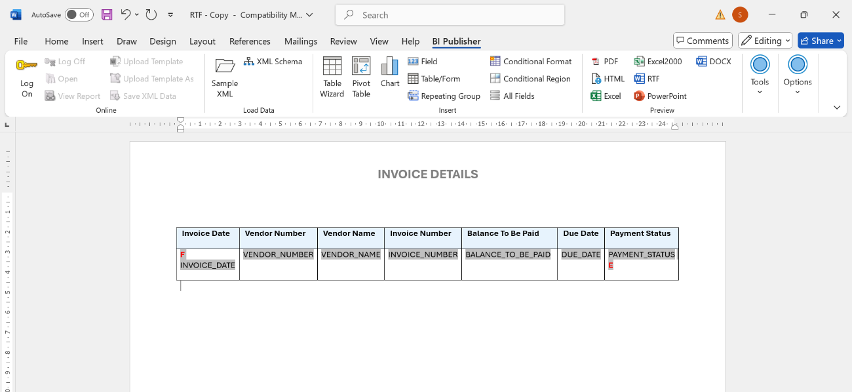
- Click Insert > Table and create a table with columns for things like Invoice Number, Payment Status, and Balance to be Paid. This is your canvas—make it clean and organized!
Step 3: Connect Your Data to the Table
Pop open the Field Browser again to see your XML tags.
- Drag and drop fields like Invoice Number, Payment Status, and Balance to be Paid into the matching columns in your table. It’s like piecing together a puzzle—satisfying and straightforward!
Step 4: Add the Magic Touch—Conditional Hiding
Here’s where the fun begins! You’ll tell BI Publisher to hide the “Balance to be Paid” column when an invoice is fully paid.
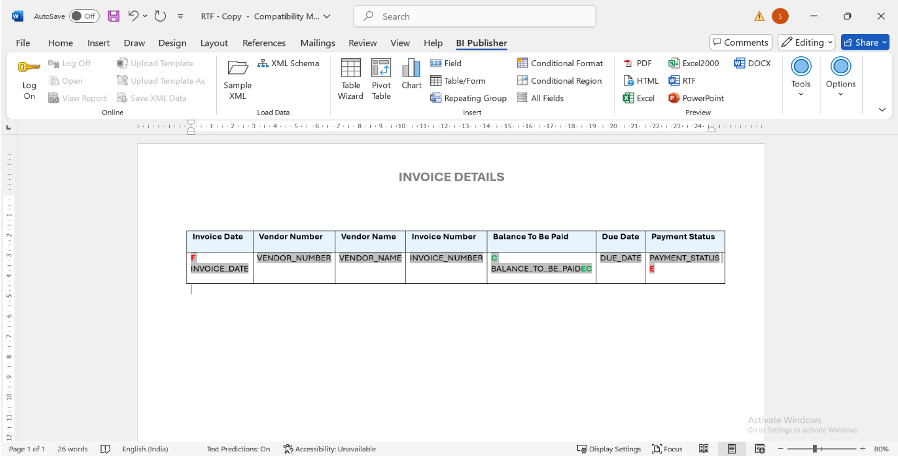
- Highlight the “Balance to be Paid” field in your table.
- Head to BI Publisher > Insert > Conditional Region.
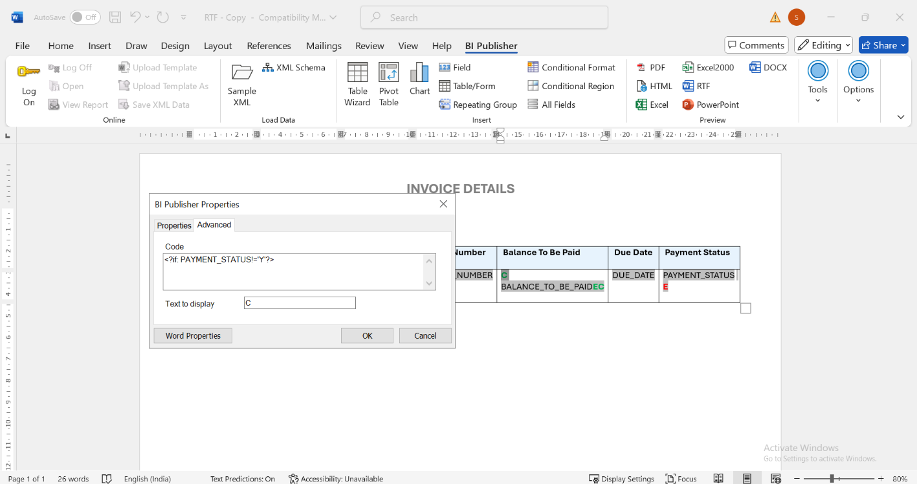
- In the Advanced Properties, set the condition to show the field only when the Payment Status isn’t ‘Y’. Use this simple code:
XML TAG: <?if: PAYMENT_STATUS!=’Y’?>
<?end if?>
What does this mean? If the Payment Status is anything other than ‘Y’ (like ‘N’ for not paid), the column will appear. If it’s ‘Y’ (paid), poof—it’s hidden! Clean and clever.
Step 5: Test Your Work
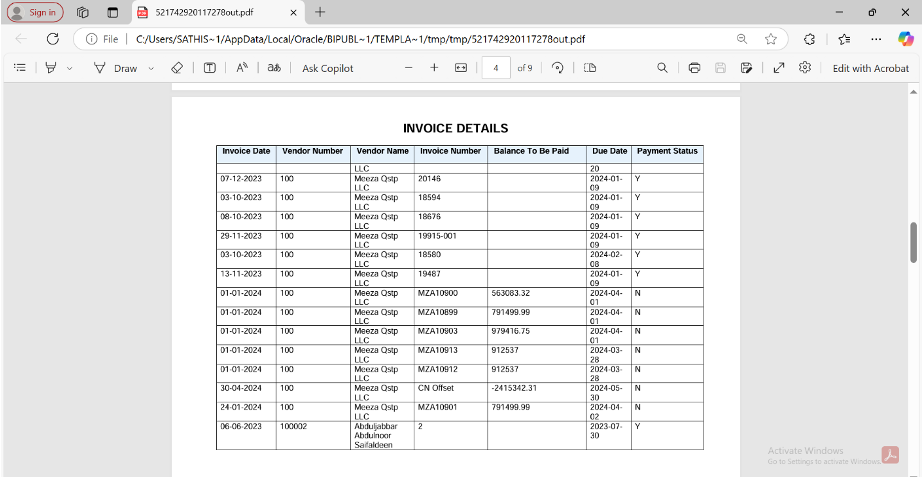
- Hit the Preview button in Word to see your report in action. Does the “Balance to be Paid” disappear for paid invoices? Perfect!
- Tweak the table’s formatting—adjust fonts, borders, or spacing—to make it look polished and professional. You’re the designer now!
Step 6: Save and Share Your Template
- Save your RTF template (that’s the file you just created).
- Go to Create Report and upload your template to your BI Publisher instance.
- Link it to your data model to ensure everything connects smoothly. Think of this as locking in your masterpiece.
Step 7: Put It to the Test
- Run the report using sample data. Check that the “Balance to be Paid” column vanishes for invoices marked as ‘Y’ (Paid). If it works, you’re golden!
- Celebrate a job well done—you’ve just made your reports more user-friendly!
The Result: Cleaner, Smarter Reports
Now, your invoice reports will only show the “Balance to be Paid” column when it’s actually needed—like for unpaid invoices. Paid invoices? No clutter, no confusion. Just a sleek, professional layout that your clients and team will love.
Why This Matters for You
Hiding irrelevant fields isn’t just a technical trick—it’s a game-changer for clarity and efficiency. Your reports will be easier to read, more accurate, and less time-consuming to explain. Plus, you can use this same approach for other fields or scenarios, making BI Publisher your go-to tool for smart reporting.